Getting Started
Pilleken is divided into five tabs: Plan (daily plan), Today (intake log), Medications, Statistics and Settings.
Here's how to set up Pilleken in a few steps:
- Open Pilleken. You'll land directly in the Plan tab.
- Tap Medications at the bottom, then + in the top right.
- Enter the name, dosage and unit of your first medication.
- Define the intake schedule: frequency, times and optionally the meal relation.
- Enter the current stock and the warning threshold.
- Enable push reminders so Pilleken notifies you on time.
- Tap Save. The medication appears in the daily plan right away.
The free version lets you manage up to 2 medications. With a Premium subscription there is no limit.
Plan & Today View
The “Plan” tab – your daily plan
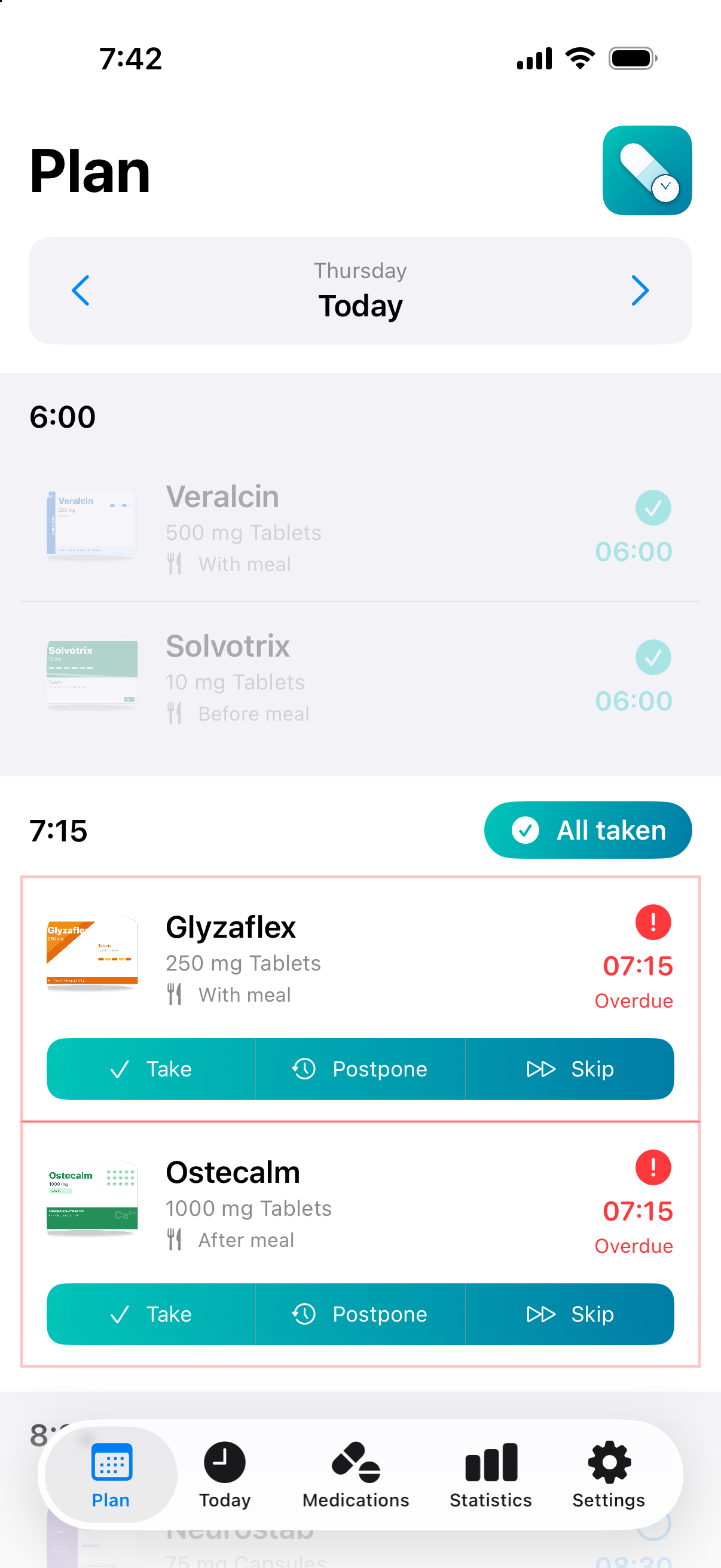
The Plan tab shows all medications for the current day, grouped by time. Use the arrow buttons at the top to move between days; the Today button takes you back to the current day.
Status colors at a glance
| Color | Status | Meaning |
|---|---|---|
| 🔵 Blue | Pending | Scheduled, not yet due or due now |
| 🔴 Red | Overdue | Due more than 15 minutes ago |
| 🟢 Green/Teal | Taken | Logged successfully |
| 🟠 Orange | Postponed | Moved to a later time |
| ⚪ Gray | Skipped | Deliberately left out |
Confirming an intake
Tap a medication card and choose Take – either now, at the scheduled time or at a custom time. You can also swipe right to bring up the quick action.
Postponing an intake
Tap Postpone and choose the delay: 15, 30, 45, 60, 90 or 120 minutes – or a custom duration. Pilleken reschedules the reminder.
Confirming all at once
If several medications are scheduled for the same time, the All taken button appears above the group – a single tap confirms them all.
Undoing an intake
Tap a card you've already confirmed again and choose Undo to reset its status.
Daily Plan
The “Today” tab – your intake log
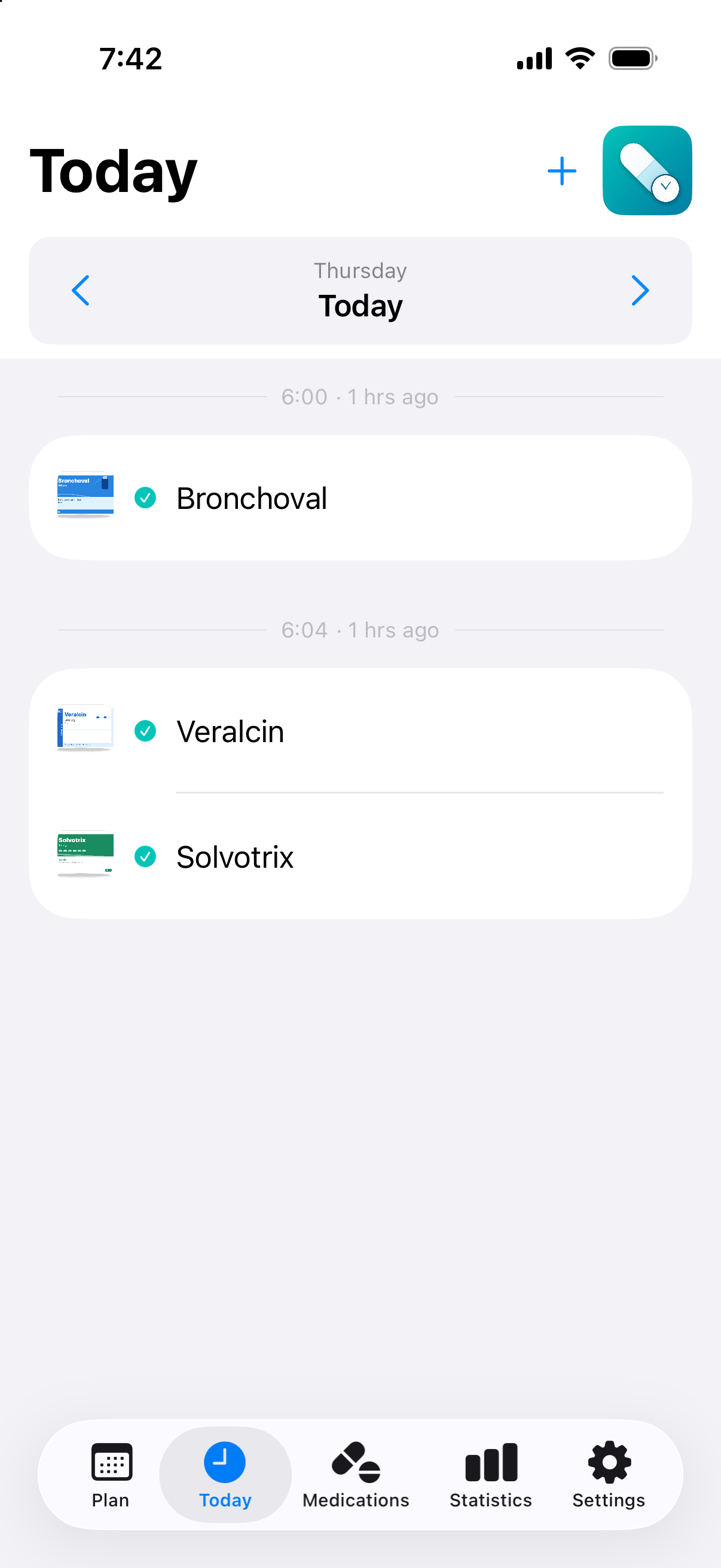
The Today tab lists all medications you actually took on a given day – with a relative timestamp (e.g. 20 minutes ago). Here you can also log an intake manually (+ button) without needing an intake schedule.
The Plan shows the scheduled daily plan – all medications that are or were due according to the schedule. The Today tab only shows the doses actually taken, as a log.
Today
Managing Medications
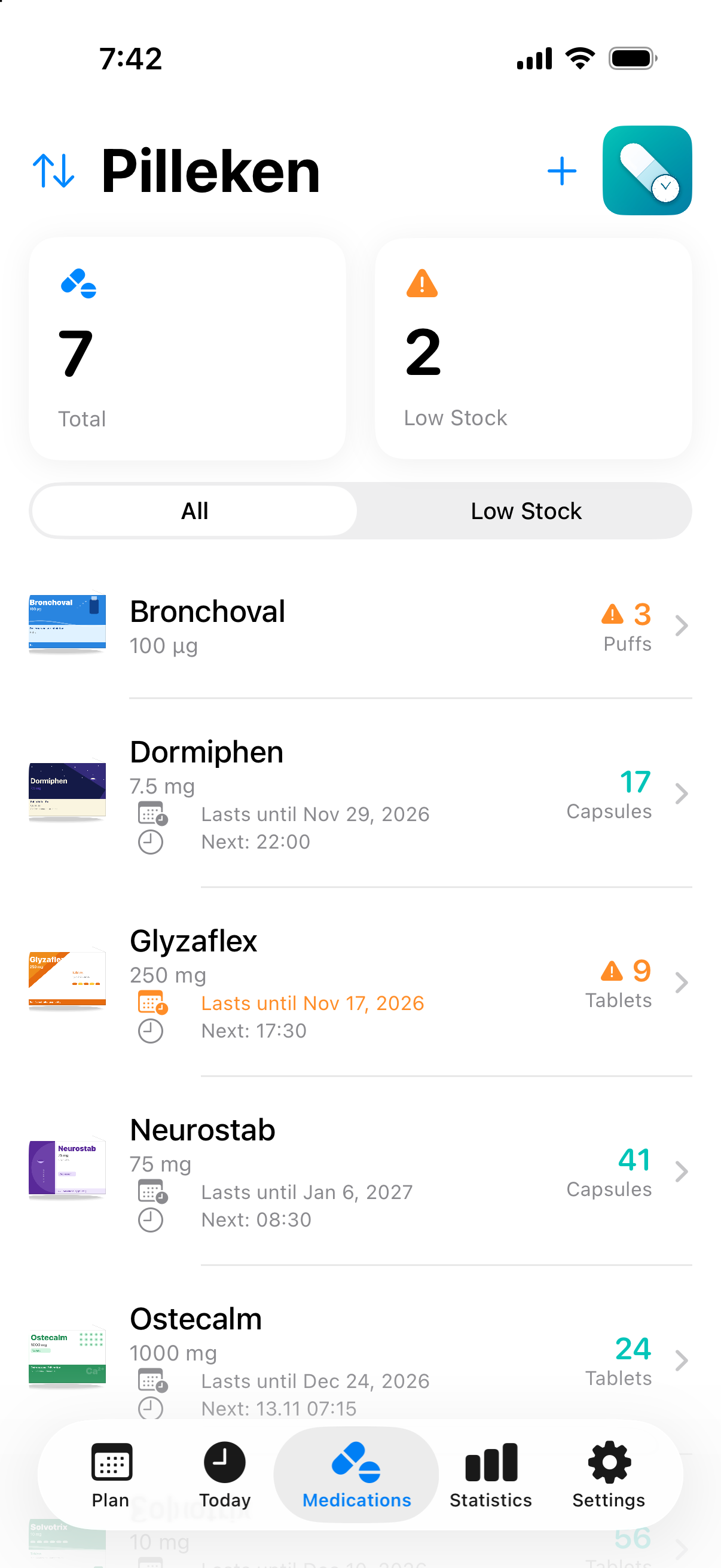
The Medications tab shows all your medications at a glance, including the next intake time, stock and expected run-out date.
Adding a medication (3-step wizard)
Step 1 – Basic information
- Tap + in the top right.
- Enter the name and dosage (e.g. “Metformin 500 mg”).
- Choose the unit (tablets, capsules, ml, drops, spray, patch, injection, cream …). Pilleken picks the matching icon automatically.
- Optional: enter active ingredients and the reason for intake – required for the BMP export.
- Optional: add a photo from your library.
- Notifications and the active status can already be toggled here.
Step 2 – Intake schedule
Here you define how and when the medication is taken. All schedule types are described in detail in the next chapter: Configuring Intake Schedules.
Step 3 – Stock
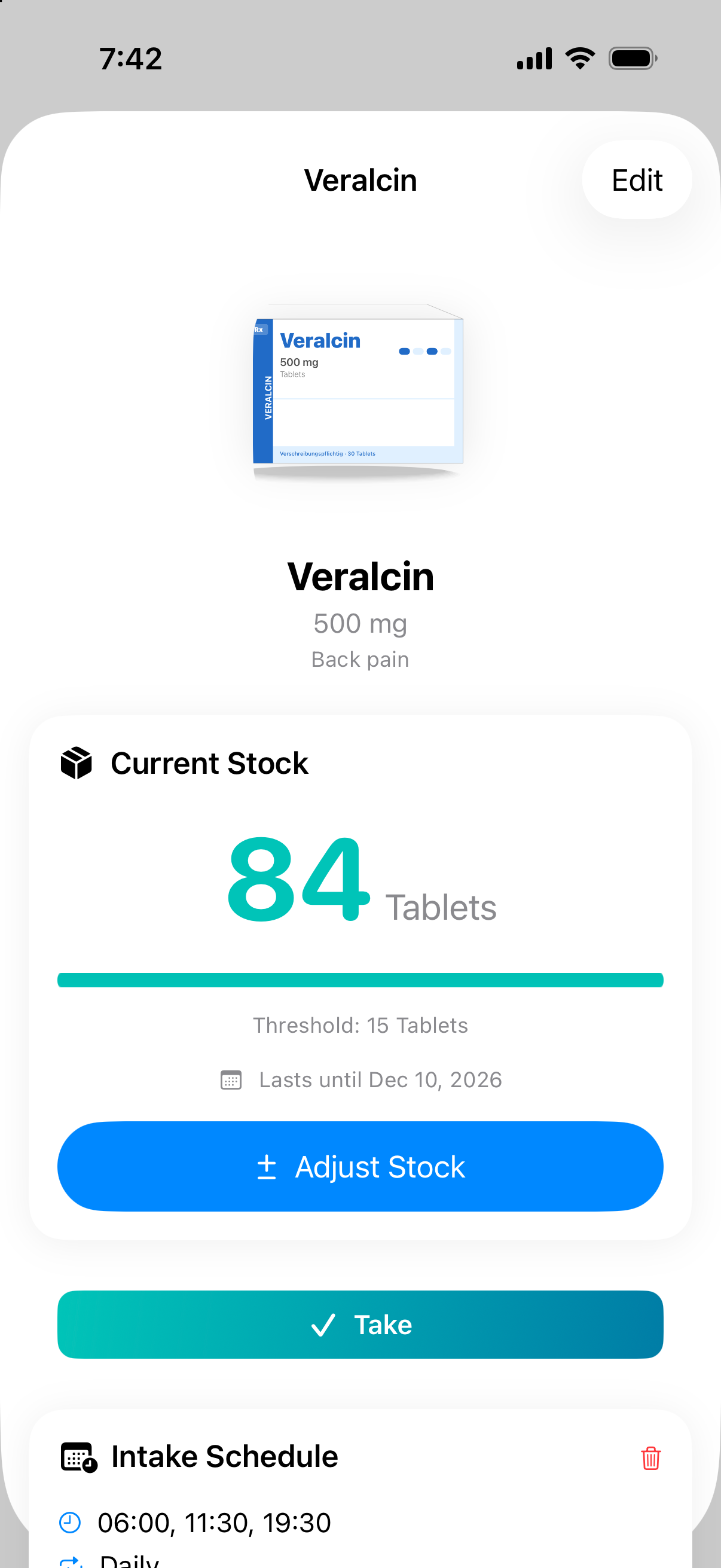
- Enter the current stock (e.g. 84 tablets).
- Set the warning threshold – you'll be alerted from this value on (default: 10).
- The base stock serves as the reference value for the progress indicator.
- Tap Save.
Editing a medication
Tap the medication in the list, then Edit in the top right. All three steps of the wizard can be edited freely.
Search & sort
The search field at the top filters by name. Use the sort menu to order the list by name, stock, next intake or run-out date. The Low Stock filter hides all medications that are still sufficiently stocked.
Deleting a medication
Swipe left in the list and tap Delete – or open the medication, tap Edit and scroll all the way down to Delete Medication.
Deleting a medication permanently removes all of its intake logs and statistics.
Medication List
Detail View
Configuring Intake Schedules
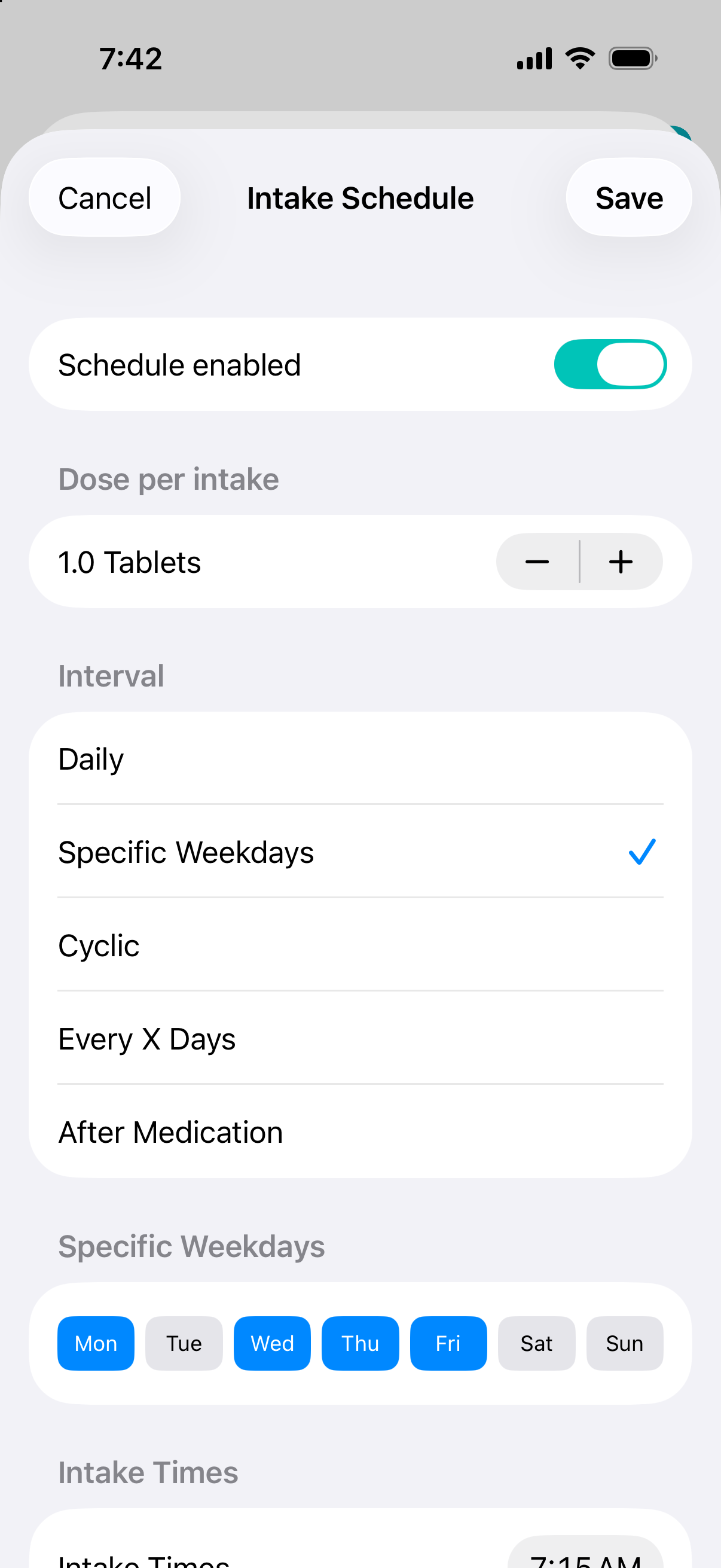
Pilleken supports five schedule types that cover every medical intake rhythm. You choose the schedule type in step 2 of the medication wizard.
Schedule types at a glance
| Schedule type | Description | Examples |
|---|---|---|
| Daily | The medication appears every day at the configured time. | Blood pressure medication, vitamins |
| Specific Weekdays | Only on selected weekdays (any combination, e.g. Mon–Fri). | Weekday-only medications, physiotherapy-related intakes |
| Cyclic | Take for X days, then pause for Y days – repeating automatically. | Contraceptive pill (21/7), chemotherapy cycles |
| Every X Days | Intake every 2 to 90 days; start date of your choice. | Weekly injections, monthly tablets |
| After Medication | Triggered automatically N minutes after another medication has been taken. | Intake chains (e.g. tablet A first, then tablet B 30 min later) |
Configuring times
You can add one or more times to any schedule type. Tap Add Time, choose the time and confirm. For each time you can optionally set a different weekend time (Sat/Sun).
Meal relation
For each time you can specify whether the intake should happen before, with or after a meal. This hint is shown in the daily view and in the BMP export.
Start and end date
Every schedule has a freely selectable start date. Optionally you can set an end date – after that, the medication no longer appears in the daily plan (its data is kept).
Intake Schedule
Choose “Cyclic”, enter e.g. 21 intake days and 7 break days, and set the start date to the first day of your current cycle. Pilleken calculates all future intake and break periods automatically.
Reminders & Notifications
Pilleken schedules all notifications locally on your device – no server connection required, it even works offline.
Enabling intake reminders
- Open the medication and tap Edit.
- Turn on the Notifications switch at the top.
- If Pilleken doesn't have permission yet, a system dialog appears – tap Allow.
- Tap Save.
Follow-up reminders
If you don't respond to a reminder right away, Pilleken can send up to 5 additional reminders at configurable intervals. You set the interval (5–120 minutes) and the number under Settings.
Notification sound
In the settings you can choose from several built-in sounds. You can preview them directly in the app.
Low-stock warning
If a medication's stock falls below the warning threshold, Pilleken sends a warning every day at the time you choose. You set the time under Settings → Stock warning time.
iOS allows a maximum of 60 pending local notifications at a time. Pilleken automatically prioritizes the nearest reminders. If you have many medications with frequent follow-up reminders, reminders for appointments further in the future may only be scheduled shortly beforehand.
Stock Management
Based on your intake schedule, Pilleken automatically calculates how long your stock will last – and shows the expected run-out date right in the medication list.
Adjusting stock
- Open the medication.
- Tap Adjust Stock.
- Choose Add (new pack) or Remove (manual correction).
- Enter the amount. The new stock is shown as a preview.
- Tap Update.
Color indicators
- Green – stock is sufficient (above the warning threshold)
- Orange – stock has reached or fallen below the warning threshold
- Red – stock is used up (0)
Every dose logged as “taken” is automatically deducted from the stock. You only need to increase the stock manually when you open a new pack.
Statistics & Reports
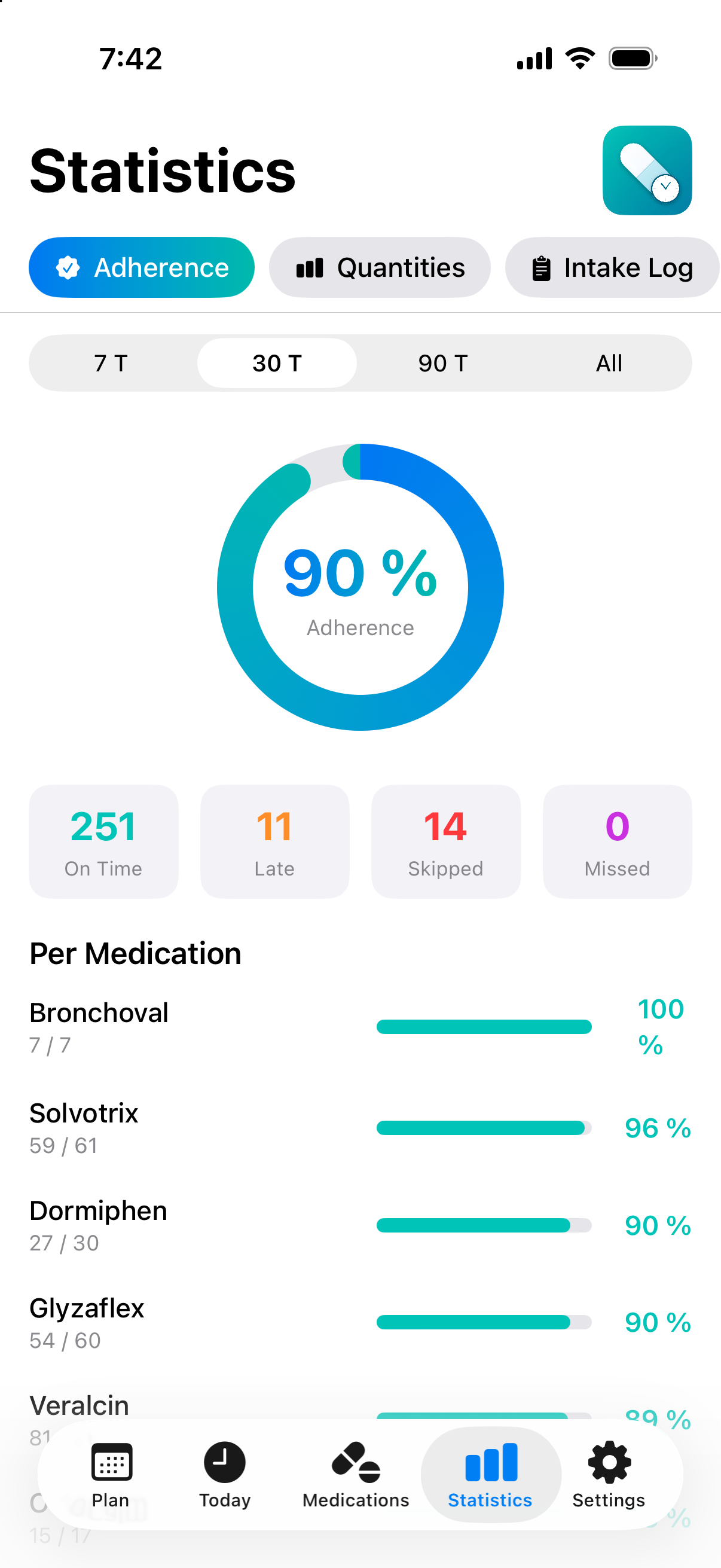
The Statistics tab is divided into several sections, which you select with the pill buttons at the top.
A – Adherence analysis
Shows how reliably you take your medications. The large ring chart displays your overall adherence as a percentage.
- Period: 7 days, 30 days, 90 days or entire history
- Taken (on time, green) – within 1 hour of the scheduled time
- Late (orange) – more than 1 hour after the scheduled time
- Skipped (red) – not taken
- Per-medication breakdown with progress bars and exact counts
- Export as PDF via the share icon
B – Intake log
An interactive table (rows = days, columns = medications) shows the result for every day and every medication as an icon:
- ✓ Green = taken on time
- △ Orange = taken late
- ✕ Red = skipped or not taken
- – Gray = no schedule for this day
You can freely choose the period via start and end date. The table scrolls horizontally. This view can also be exported as PDF.
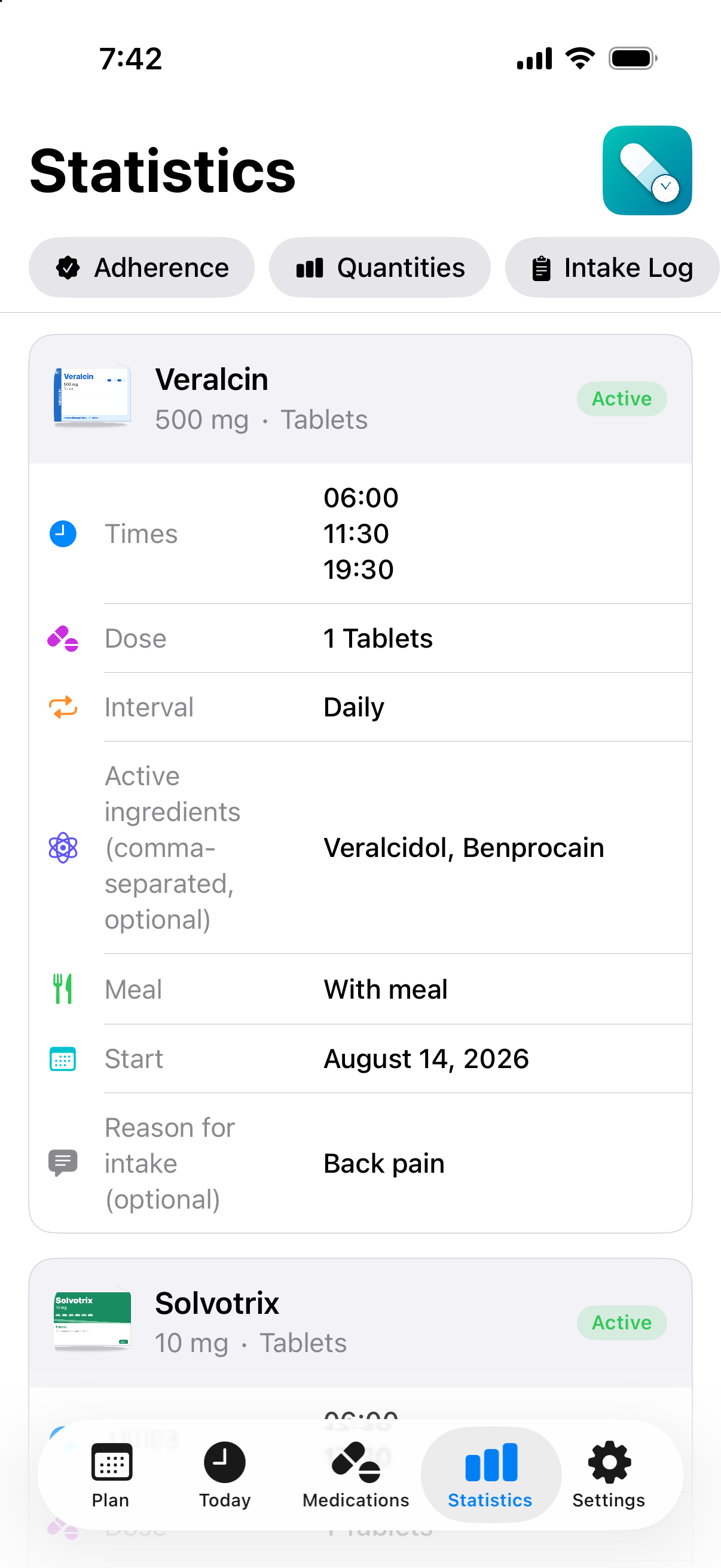
C – Medication plan
A card-based overview of all scheduled medications with:
- Name, dosage, unit, active status
- Scheduled intake times (including weekend variants)
- Dose per intake, schedule type (daily, cyclic …)
- Meal relation, start and end date
- Active ingredients and reason for intake
Adherence
Medication Plan
Medication Plan & BMP
The German Federal Medication Plan (Bundeseinheitlicher Medikationsplan, BMP) is a standardized format in Germany that doctors' offices and pharmacies use as a reference for your medications. Pilleken creates it fully automatically.
Creating a BMP
- Open the Statistics tab and switch to the BMP section.
- Enter your patient data: name, date of birth and optionally your doctor's name.
- Pilleken fills the BMP table automatically with your active medications.
- Tap Export as PDF. The PDF contains the standardized table and a QR code.
Scanning a QR code
If you received a BMP as a QR code from your doctor's office, you can import it directly into Pilleken: in the BMP section, tap Import BMP via QR Code and point the camera at the code. Pilleken imports the medication data automatically.
For a meaningful BMP, active ingredients and the reason for intake are helpful for each medication. You enter them in step 1 of the medication wizard (fields “Active ingredients” and “Reason for intake”).
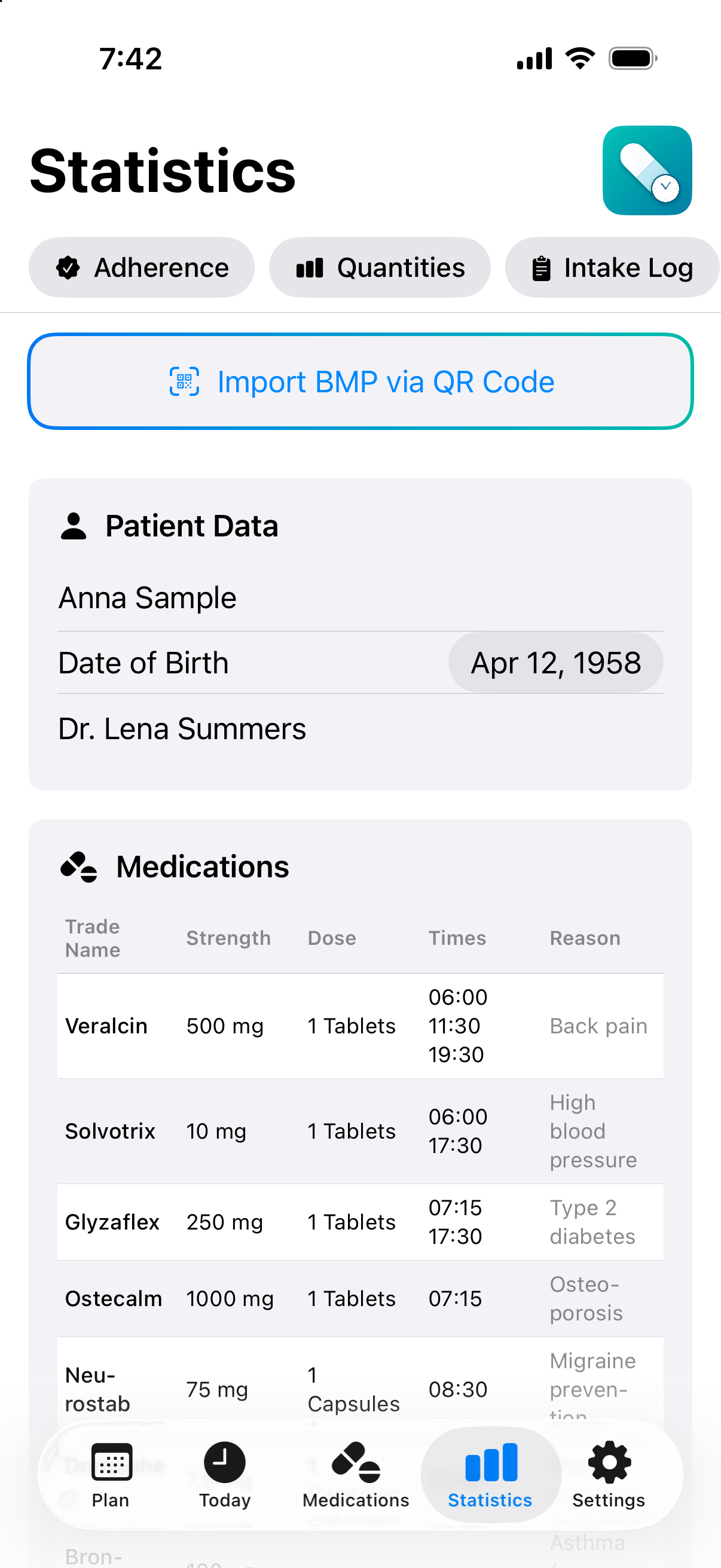
BMP with QR Code
Widgets
Pilleken offers two completely different widget types, each in three sizes.
Widget types
| Type | Small | Medium | Large |
|---|---|---|---|
| Intake widget Shows upcoming intakes |
Next intake | Next 4 intakes | Next 6 intakes |
| Stock widget Shows medication stock |
Medication with the lowest stock | 3 medications (3-column grid) | Up to 7 medications with progress bars |
Adding a widget
- Touch and hold the Home Screen until the apps jiggle.
- Tap + in the top left.
- Search for Pilleken.
- Swipe through the widget types and sizes and pick the combination you want.
- Tap Add Widget.
Tap a medication in the widget to jump straight to its detail view in Pilleken.
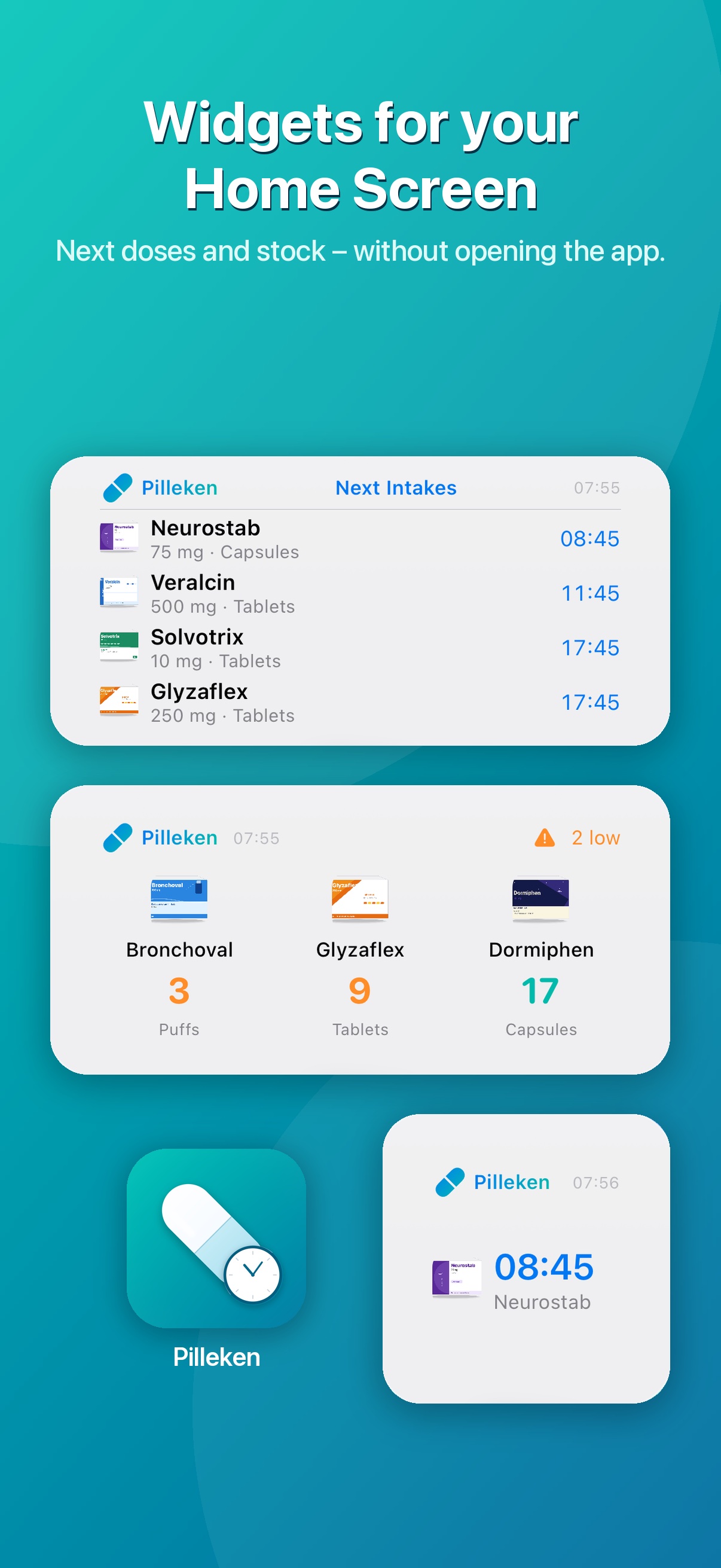
Home Screen Widgets
Settings
Language
Pilleken supports German and English with instant switching, no app restart required. The language is saved independently of the iOS system language.
Notifications
- Master switch: turn all intake reminders on or off globally
- Grant permission: opens the iOS system settings if permission hasn't been granted yet
- Sound: choose from several built-in sounds with live preview
- Stock warning: the time at which stock is checked and warnings are sent every day
Reminders
- Number of follow-up reminders: 0 to 5
- Interval between follow-up reminders: 5 to 120 minutes
Postpone
Default postpone time (5–240 minutes) that is preselected when you tap “Postpone”.
Default warning threshold
The stock threshold that is set automatically for newly added medications (1–100 units).
Data
Shows the number of stored medications. Delete All Data permanently removes all medications and logs – you'll be asked to confirm.
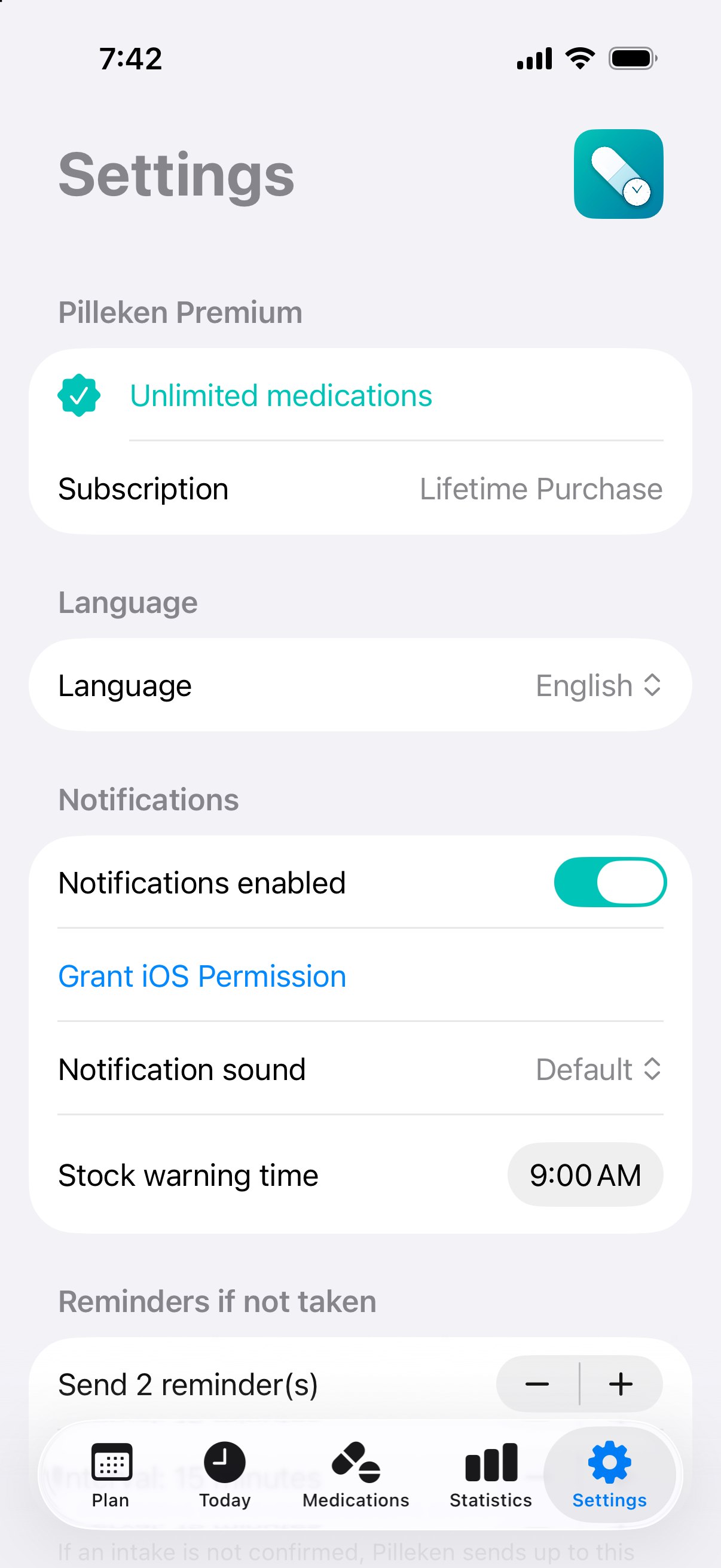
Settings
iCloud & Backup
iCloud sync (Premium)
With a Premium subscription you can keep Pilleken in sync on iPhone and iPad. Enable sync under Settings → iCloud Sync.
- All medications, intake logs and settings are synchronized automatically
- Medication photos are transferred as well
- The tile shows the time of the last sync and which device last changed data
- Sync Now triggers a manual sync
- In case of conflicts (e.g. after reinstalling), a one-time resolution prompt is shown
Local backup & restore (iOS, Premium)
- Go to Settings → Backup.
- Tap Back Up Now. The backup is saved in your app's documents folder.
- To restore: tap Restore, choose a backup from the list (with date and number of medications) and confirm.
Before deleting the app or switching devices, either create a local backup or make sure iCloud sync is enabled. Without a backup, all data is lost when you uninstall the app.